
Improve conversion in Shopify
Put Nelo's instalment message on your product pages, cart, and cart drawer in a few clicks — no code required.
Shoppers convert better when they know instalments are available before they reach checkout. Nelo can show a message on your product pages, your cart, and your cart drawer:
nelo — Paga a quincenas sin tarjeta y recibe 25% OFF para nuevos usuarios.
The wording is managed by Nelo and updates on its own when a campaign changes. You never have to edit it, and you never have to touch theme code.
Setup is a few clicks in the theme editor in about five minutes.
Before you start
You need your publishable key. Nelo gives you this when your store is onboarded. It is public by design — it ends up in your page source — and it only allows Nelo to show promotional content.
The Nelo payment method must be installed. Check Settings → Payments; Nelo should be listed under Additional payment providers and marked Active.
If you installed Nelo before promotional messaging existed, the blocks below will not appear in your theme editor yet. Contact Nelo and we will refresh the installation for you — please don't deactivate the payment method yourself if you have unfulfilled Nelo orders.
Know which kind of theme you have. Go to Online Store → Themes → Customize and open a product page. If the left sidebar shows sections you can expand with an Add block button inside them, you have a current theme — follow the "Most themes" steps below. If there is no Add block anywhere, you have an older theme — follow the "Older themes" steps instead. Themes published since 2021, including Dawn, are all current.
1. Product page
Most themes
- Online Store → Themes → Customize.
- In the template dropdown at the top, choose a product page.
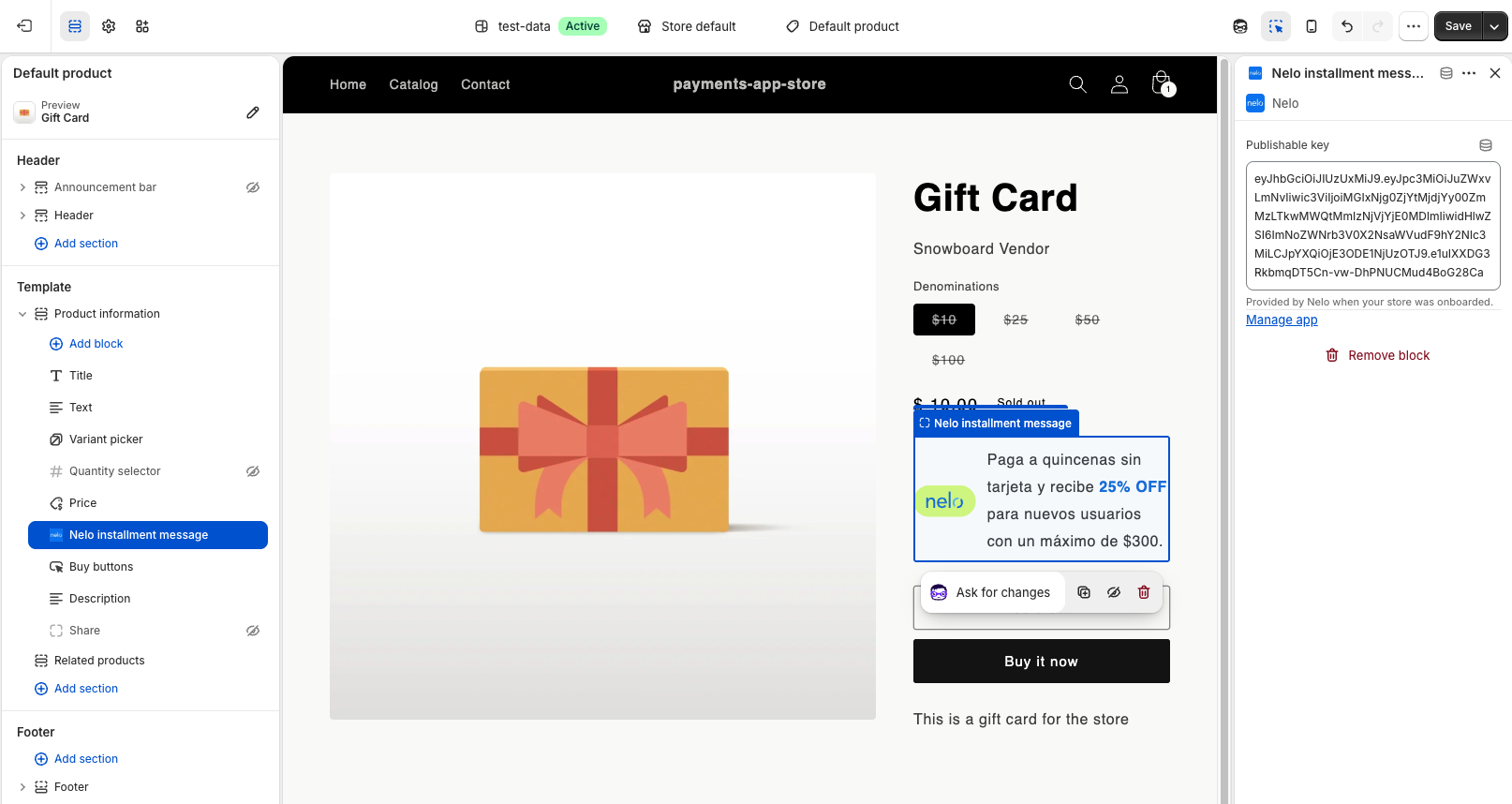
- In the left sidebar, find the section holding your product title and price, and click Add block.
- Switch to the Apps tab and choose Nelo installment message.
- Drag it to where you want it — directly under the price works best.
- With the block selected, paste your Publishable key into the field on the right.
- Save.
Older themes
- Online Store → Themes → Customize.
- Click the App embeds icon in the left sidebar.
- Turn on Nelo message (legacy themes).
- Click the arrow to expand it and paste your Publishable key.
- Save.
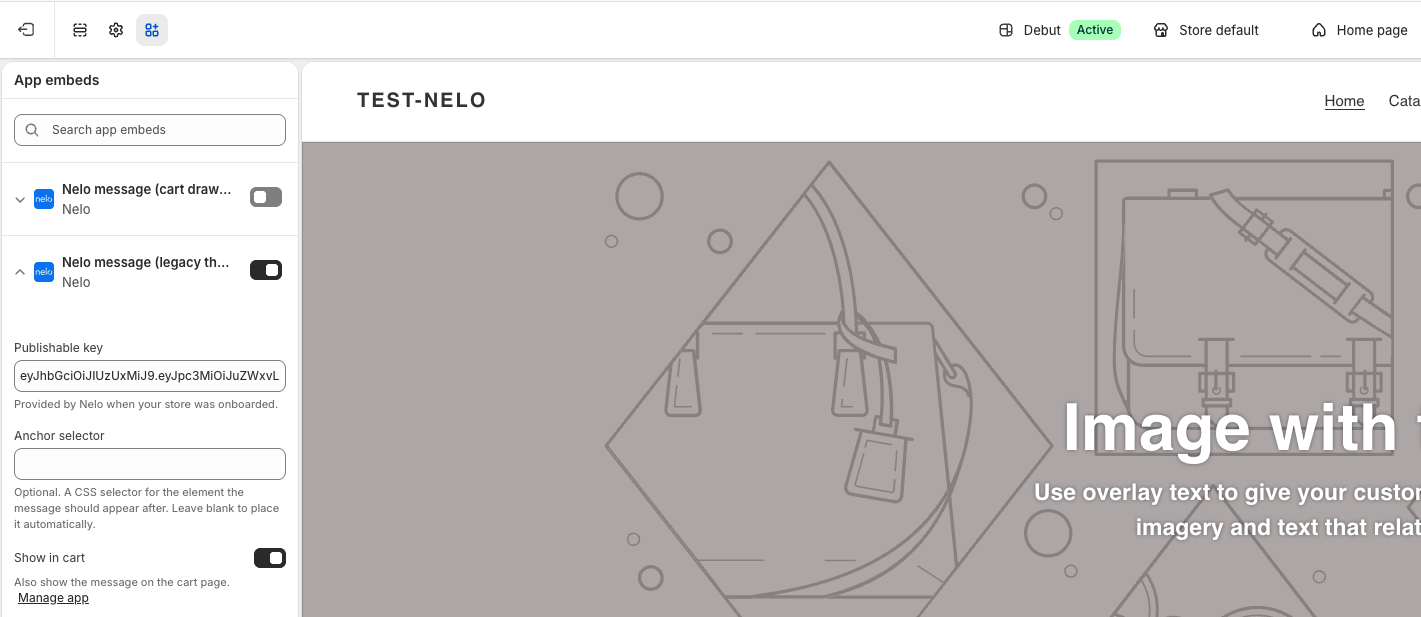
The message finds your price automatically and places itself underneath.
2. Cart page
Most themes
Repeat the product-page steps, but choose the cart template in step 2. It is the same Nelo installment message block; it shows the cart total instead of a product price.
Older themes
Nothing to do. Nelo message (legacy themes) covers the cart page as well, controlled by the Show in cart checkbox in its settings, which is on by default. Untick it if you only want the message on product pages.
3. Cart drawer (sidebar cart)
Many themes open the cart as a panel that slides in from the side, rather than sending shoppers to a cart page. If yours does, this is the cart most of your customers actually see, so it is worth setting up.
This one is an app embed on every theme, current or older, because Shopify does not allow blocks to be placed inside a cart drawer.
- Online Store → Themes → Customize.
- Click the App embeds icon in the left sidebar.
- Turn on Nelo message (cart drawer).
- Expand it and paste your Publishable key.
- Save.
Then open your store, add something to the cart, and open the drawer to check it.
Which do I need?
| Your store | Product page | Cart page | Cart drawer |
|---|---|---|---|
| Current theme, cart page | Nelo installment message block on the product template | Same block on the cart template | — |
| Current theme, cart drawer | Nelo installment message block on the product template | Same block on the cart template (optional) | Nelo message (cart drawer) embed |
| Older theme | Nelo message (legacy themes) embed | Same embed, Show in cart on | Nelo message (cart drawer) embed |
On a current theme, leave Nelo message (legacy themes) switched off — the block already covers those pages, and running both is unnecessary.
If the message appears in the wrong place
On older themes and in cart drawers, Nelo has to find your price on its own, and themes vary. If the message lands somewhere odd, you can tell it exactly where to go:
- Open your store and right-click the element you want the message to appear below — your subtotal, for example — then choose Inspect.
- In the panel that opens, right-click the highlighted line and choose Copy → Copy selector.
- Back in the theme editor, expand the Nelo app embed and paste it into Anchor selector.
- Save and reload your store.
If the message disappears entirely after doing this, the selector did not match anything — clear the field to return to automatic placement, and tell us what you were aiming at so we can handle that theme properly.
Turning it off
- Blocks: in the theme editor, select the Nelo block and click the eye icon to hide it, or remove it entirely.
- App embeds: switch the toggle off.
Either takes effect as soon as you save, and neither affects Nelo as a payment method at checkout.
Good to know
- Settings live on the theme. If you duplicate your theme, or publish a different one, you will need to set the message up again on that theme. Nothing breaks — the message simply stops appearing.
- Nothing is added to checkout. These blocks only affect your storefront; Nelo already appears at checkout as a payment method.
Updated about 5 hours ago