
Improve conversion in Vtex
Customers who know installments are available buy more often. Add Nelo's instalment message to your product pages, cart, and cart drawer from your theme editor in about five minutes.
Nelo's promotional messaging tells shoppers they can pay in installments before they reach checkout, which is where most of the conversion lift comes from. On Vtex you can have it running without writing any code: install the Nelo app, add three lines to your checkout file, and every message, price and campaign is served by Nelo from then on.
This page covers promotional messaging only. To accept Nelo as a payment method, see Vtex.
How it works
Once the widget is loaded, it renders in three places:
| Surface | What the shopper sees |
|---|---|
| Product page | A financing message near the add-to-cart button ("Paga a quincenas sin tarjeta…"), always calculated from the selected SKU's price. |
| Checkout, payment list | The Nelo option shows the current campaign label and the Nelo icon, the same way card brands are shown. |
| Checkout, payment step | When the shopper selects Nelo, an explainer card replaces the method's default text: how the installments work and how to repay (SPEI transfer or OXXO). |
All copy, styling, prices and the icon are served by Nelo's backend. When a campaign changes, your store updates automatically — you never edit the text yourself.

product page message
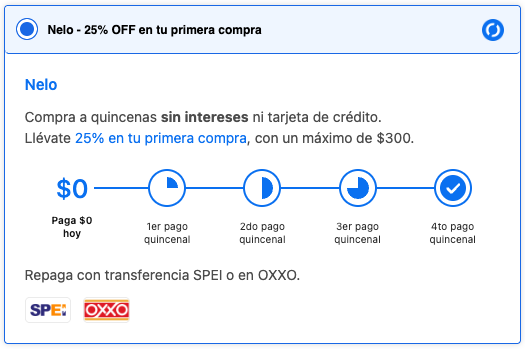
checkout payment step
Before you start
You need:
- Your publishable key, issued by Nelo during onboarding. It is public by design (it appears in your page source) and only grants access to promotional content — it cannot move money or read orders.
- A developer with Vtex admin access, and the Vtex CLI installed (
npm install -g vtex) for the app path. - To know your storefront type.
- Right-click a product image and copy its address:
*.vtexassets.com→ Store Framework;*.vteximg.com.br→ legacy CMS portal. - Or open your store, right-click, View Page Source and search:
__RUNTIME__orvtex.render-runtime→ Store FrameworkskuJsonon a product page and neither of the above → legacy CMS portal
- Or, with the Vtex CLI:
vtex edition get— returns the account's Edition App; a name containingedition-storeindicates Store Framework, a business edition indicates otherwise.vtex lson master — an installed theme app (<account>.store-themeorvtex.store-theme) means the storefront is Store Framework.
- Right-click a product image and copy its address:
Installation
Product pages and checkout are installed separately, because Vtex checkout runs outside Store Framework. Do both:
- Product page setup — install the app, or add the loader to your theme or CMS template.
- Checkout setup — add the loader to
checkout6-custom.js.
Then validate with the checklist below.
Validate
On your workspace URL if you tested first, otherwise on your store.
Product page
- Open any product page — the Nelo message appears near the add-to-cart button.
- Change size or color — the message stays consistent with the selected SKU.
Checkout
- Add a product, go to checkout and reach the payment step.
- The Nelo row in the payment list shows the campaign label and the Nelo icon.
- Select Nelo — the explainer card replaces the method's default text.
- Select another method — its pane renders normally, with no Nelo content left behind.
- Select Nelo again — the card is back, and stays correct after cart changes such as a different shipping option.
- Place a real test order with Nelo. This is the one check not to skip: messaging must never interfere with order placement.
Troubleshooting
Open DevTools (F12) → Network and filter by nelo.
| Symptom | What it means |
|---|---|
No js.nelo.co script on the page | The loader is missing on that surface: the key is not saved (product pages) or the checkout snippet was not added. |
Script loads, no promotional-messages requests | Product page: placement is still waiting for the page to settle, or something blocked the request — reload once. Checkout: a single request at page load is normal; the card renders only when Nelo is selected. |
| Requests return 401 | Wrong or missing key. Re-check it everywhere it was pasted, and in the admin of the exact workspace you are testing. |
Uncaught SyntaxError: Unexpected token '<' | <script> tags were pasted into checkout6-custom.js. Remove them and keep raw JavaScript. |
| The message appears below other financing widgets, then jumps above them | Expected behavior — see Product page setup. Place the block for a fixed position. |
| The message stays below the other financing widgets | Also expected on some themes, for the reason described on that page. Place the block for a fixed position. |
| The payment row shows only "Nelo", or the icon is missing | Both come from the backend response. With no active campaign, your platform default label stays — this is not an error. |
| Copy looks oddly worded or translated | Browser auto-translate is on. The widget serves Spanish copy; turn the translator off. |
Good to know
- Your publishable key is safe in page source. It only authorizes promotional content requests.
- Nothing blocks checkout. Promotional messaging is presentational: if Nelo's service is unreachable, the message simply does not render and your checkout behaves exactly as before.
Updated about 1 month ago